Settings
Open Settings from the bottom of the left sidebar. The page has a section for each group of settings: Theme, API, Beta Features, Tables, and, for administrators of the Sicura Console, General, Authentication and Sage.
Theme
Choose Light theme, Dark theme, or Use device theme to follow your operating system's setting. The choice applies to you only, in this browser.
API
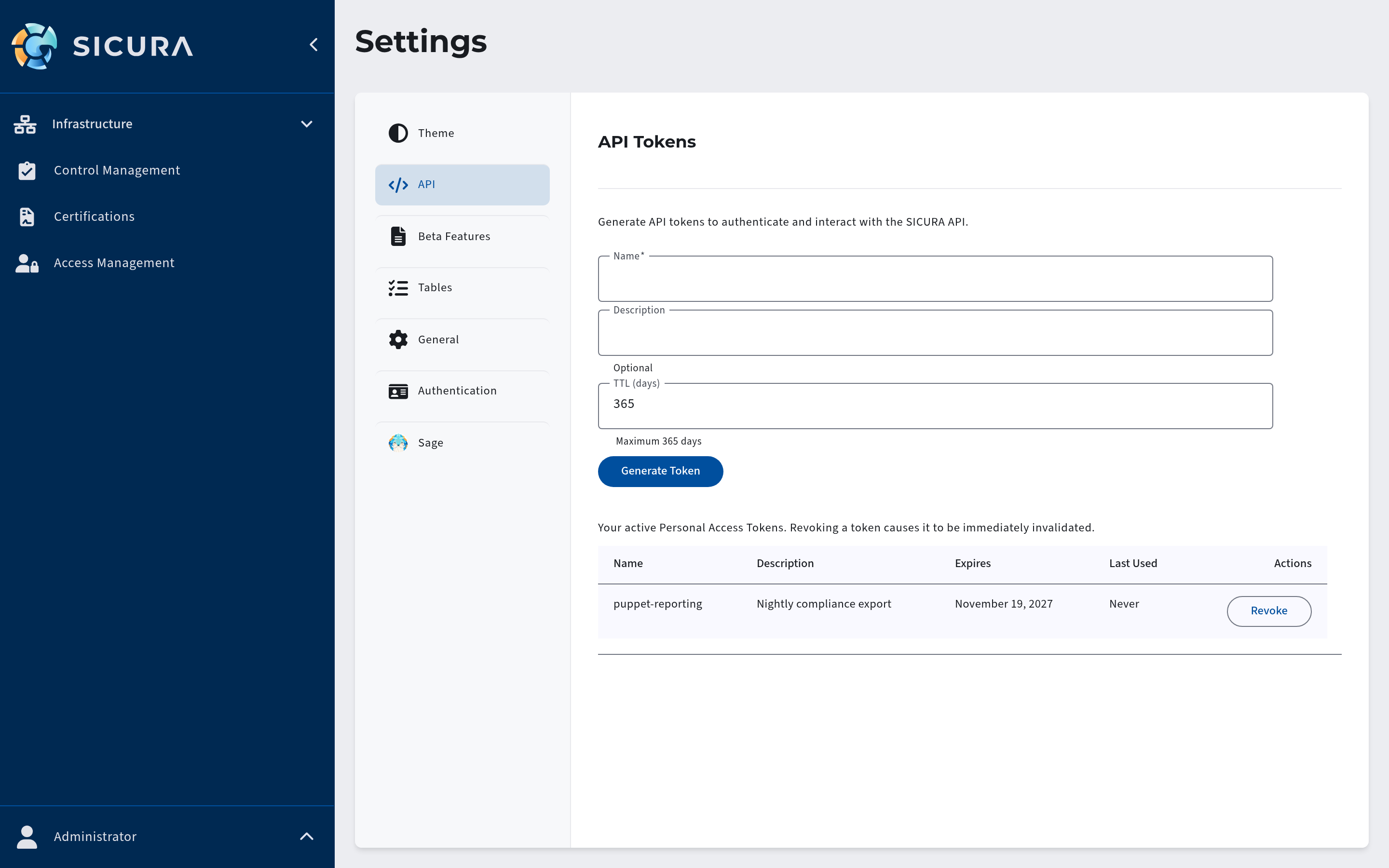
The API Tokens section creates tokens for scripts and other tools that call the Console API. A token acts with the permissions of the user who created it.
To create one, enter a Name, an optional Description, and how many days the token stays valid in TTL (days), then click Generate Token. Copy the token from Generated Token right away: it is shown only once.
With the Sicura Console:
- The TTL (days) field shows the longest validity an administrator allows. When there is no limit, check No expiry to create a token that does not expire.
- A table lists your active tokens with when each expires and was last used. Click Revoke to invalidate a token immediately.
- Send the token in an
Authorization: Bearer <token>header.
With the Classic Console, tokens can only be created here, not listed or revoked, and leaving TTL (days) empty uses the server's default.
Beta Features
Turn on pages that are still in beta, such as Dashboard and Machine Images. The choice applies to you only, in this browser.
Tables
Choose how tables show long lists. The choice applies to you only, in this browser, and changes save immediately.
- All tables sets the defaults: Paginated or Infinite scroll, and Default rows per page.
- Each table lists the tables that can be set individually, currently Pending Nodes and Rejected Nodes. Leave a table on Inherit to follow the defaults, or give it its own view and Rows per page. A table that has its own setting is marked Differs from the defaults.
Click Reset to put one table back on the defaults, or Reset all for every table.
General
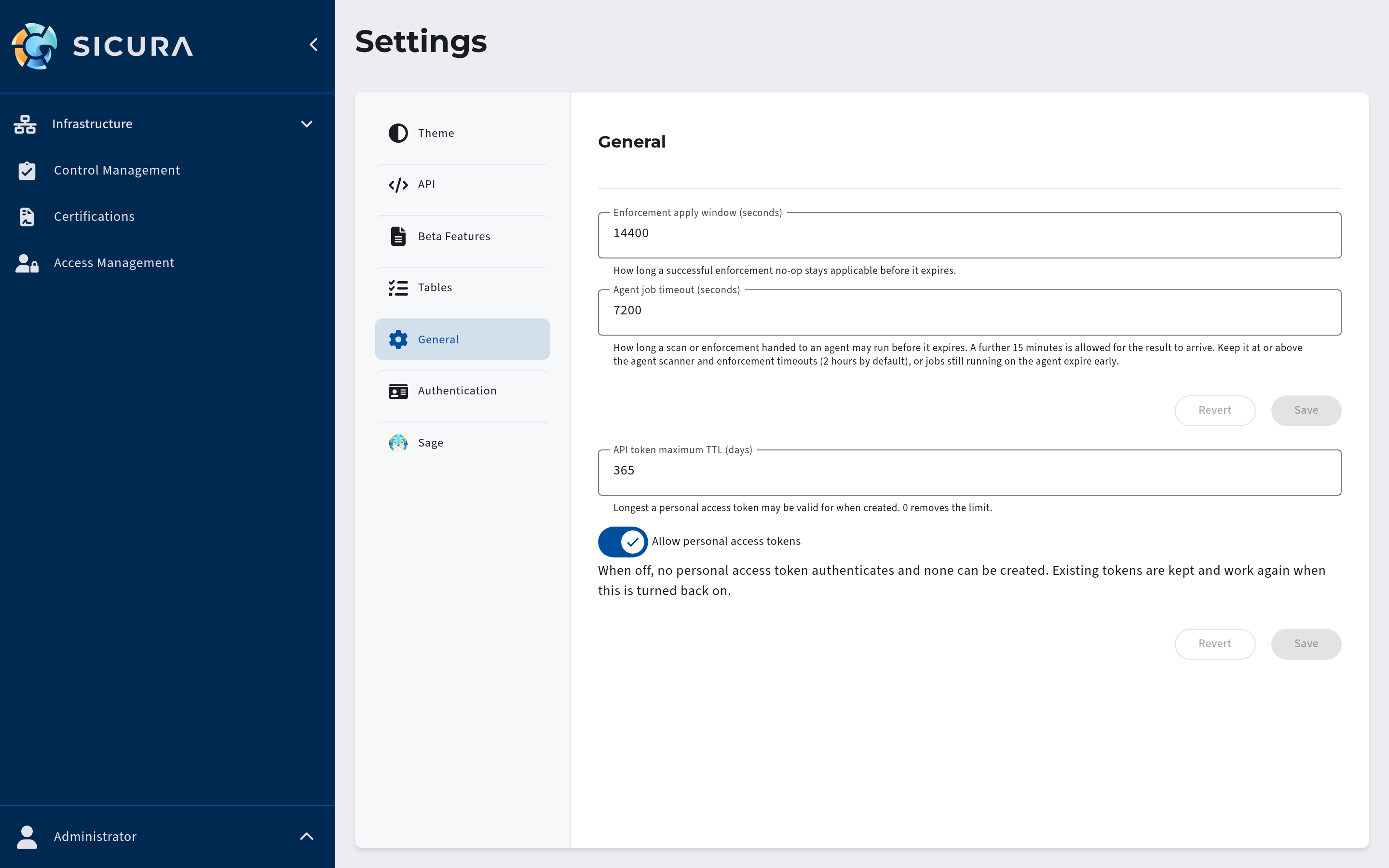
Available with the Sicura Console, to administrators. General holds settings that apply to the whole Console:
- Enforcement apply window (seconds) — how long a remediation preview stays valid before it must be run again. The default is 14400 (4 hours).
- Agent job timeout (seconds) — how long a scan or remediation sent to an Agent may run before the Console gives up on it. The default is 7200 (2 hours). Keep it at or above the Agent's own scan and enforcement timeouts.
- API token maximum TTL (days) — the longest validity a new API token may have. The default is 365; 0 removes the limit.
- Allow personal access tokens — whether API tokens work at all. It is on by default. When it is off, no API token is accepted and none can be created. Existing tokens are kept, and work again when it is turned back on.
Authentication
Available with the Sicura Console, to administrators. Authentication lists the identity providers users sign in through. With the Classic Console, providers are managed on the Providers tab of Access Management instead.
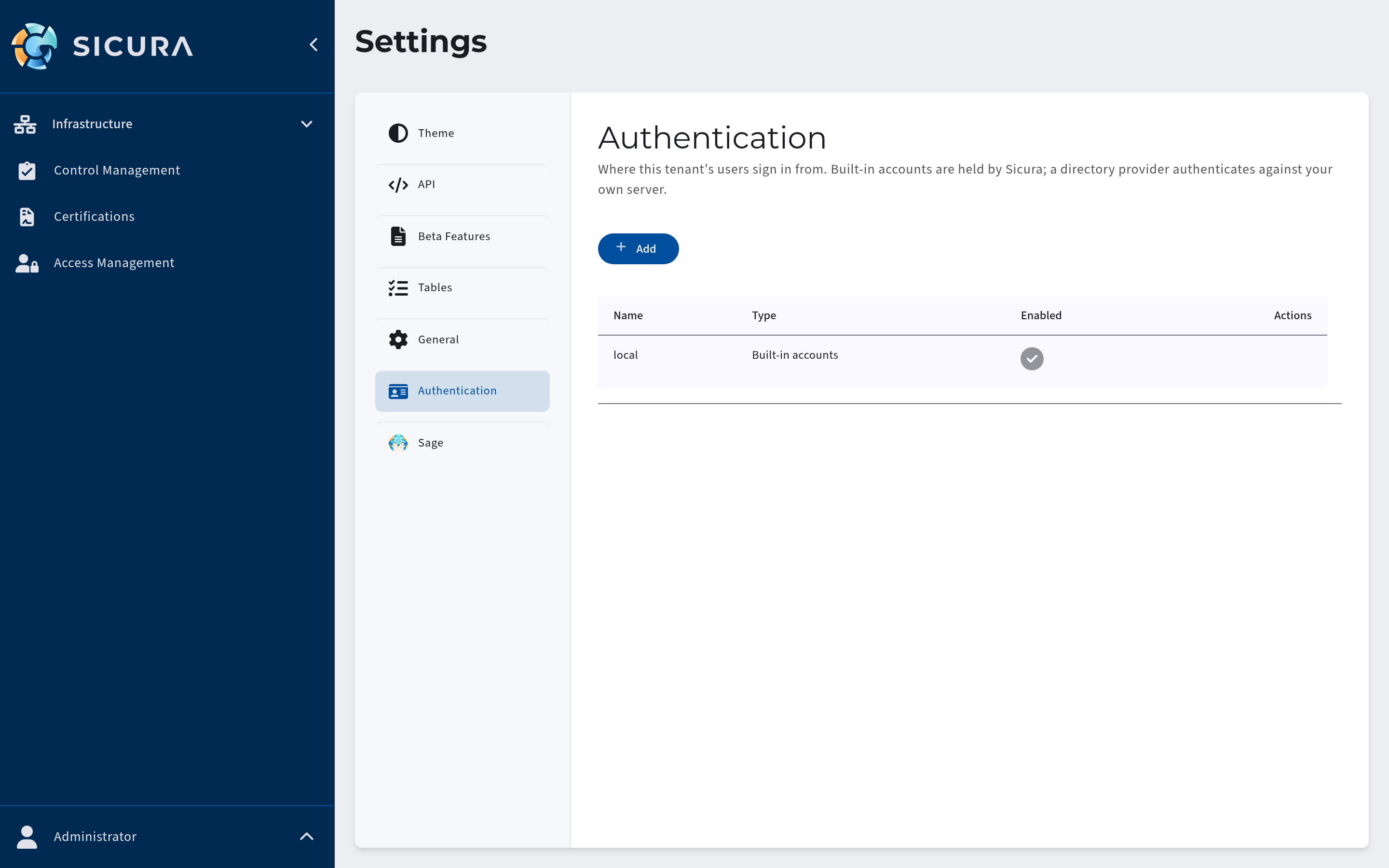
The Built-in accounts provider holds the accounts the Console stores itself, including admin, and is always present. To add a directory, click Add, choose a Type of LDAP or Active Directory, and fill in the connection details:
- For LDAP, the Host and the Search base.
- For Active Directory, the Domain. The Console finds the domain controllers and the search base through it; fill in Domain controllers or Search base only to override what it finds.
- For both, the Port, the Encryption, the Bind account and Bind password used to search the directory, and the attributes that hold each user's login name, email and full name.
Turn on Create accounts on first login to let directory users who have no Console account yet sign in.
Only one directory can have Enabled turned on at a time. To replace a directory, add the new one with Enabled off, turn the old one off, then turn the new one on.
After saving, open the provider with Edit and click Test connection to check that the Console can reach and search the directory. Delete removes a provider that nobody has signed in through. A provider that has accounts linked to it cannot be deleted; turn off Enabled to stop its users from signing in. The Built-in accounts provider cannot be edited or deleted.
With the Sicura Console the sign-in page asks only for a username and password, and has no Domain selector.
Sage
Available with the Sicura Console, to administrators. Sage holds the settings for the Console's AI assistant; see Turn On Sage.