Control Management
Profiles are groupings of rules that are used to scan systems and enforce their compliance. On startup, the Console provides profiles defined by the following providers:
- CIS (Center for Internet Security)
- DISA (Defense Information Systems Agency)
Each of these providers includes numerous profiles depending on your compliance needs. Any of these profiles can be scanned on any of our various supported platforms, and then enforced either using the Console's built-in enforcement feature, or by using the Sicura Compliance Engine in a Puppet environment.
Scan Profiles
Currently, scan profiles can only be accessed from the Scan dropdown or from the Node Settings/Default Profile selection.
Coming Soon
A future release of the Console will add a dedicated Scan Profiles page — a single place to browse the built-in profiles, build your own custom ones, and link them directly to enforcement profiles.
Enforcement Profiles
The Control Management page in the left sidebar provides a top-down view of any profile that can be used to enforce settings on a system.
The page is split into 2 sections.
Default
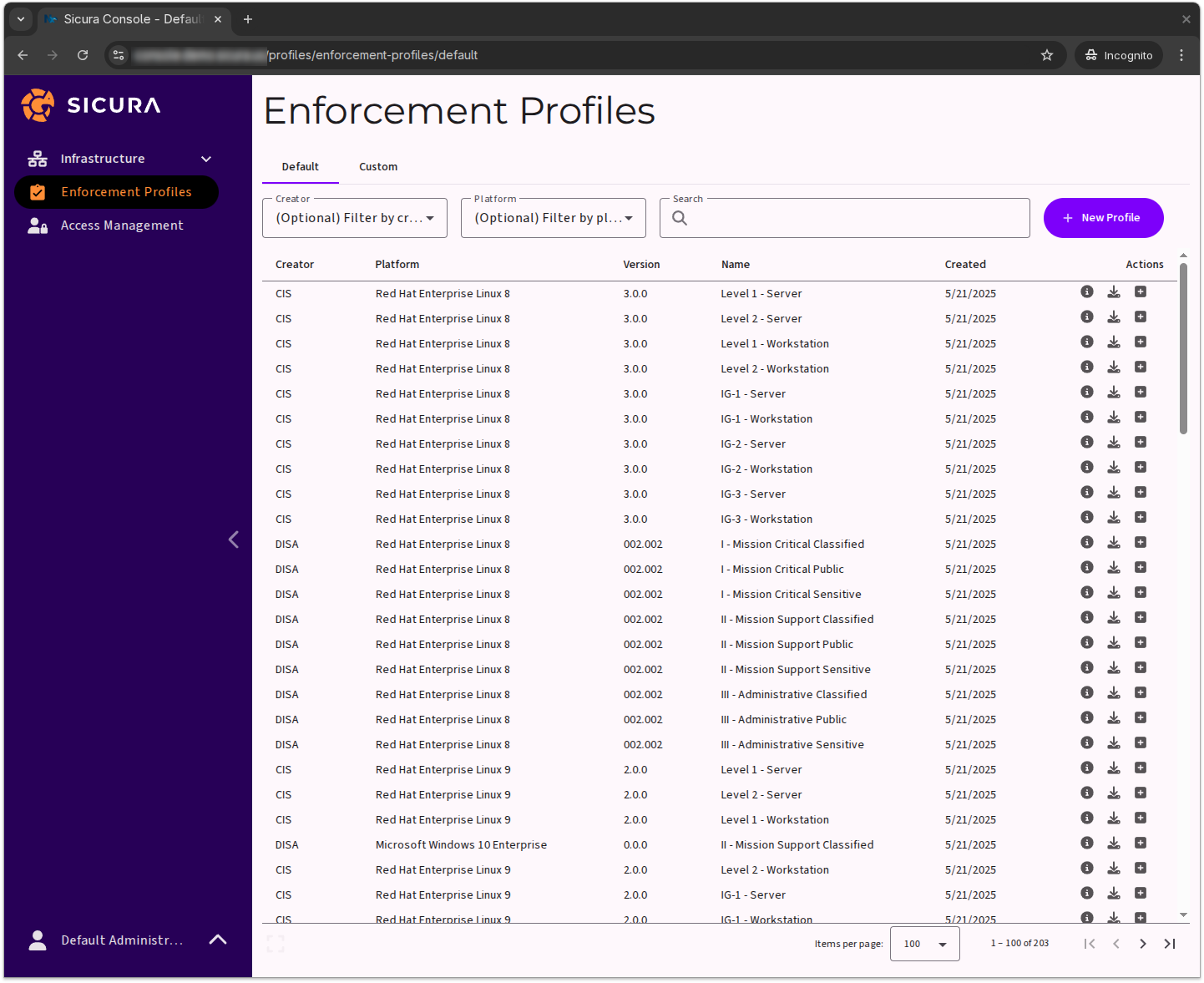
Profiles under the Default tab are automatically populated the first time the Console loads, and will update whenever the Console is upgraded to a newer version. Each profile appears as a row in the table with an Actions column that provides 3 actions to be taken on any default profile:
- View Profile (the info icon) — allows you to view the active rules in the profile
- Download YAML (the download icon) — downloads the profile as YAML to be used with Sicura Compliance Engine
- New profile (the plus icon) — creates a custom profile based on the contents of this profile
To create a custom profile based on an existing one, click the New profile button in the Actions column. This will bring up the new profile form.
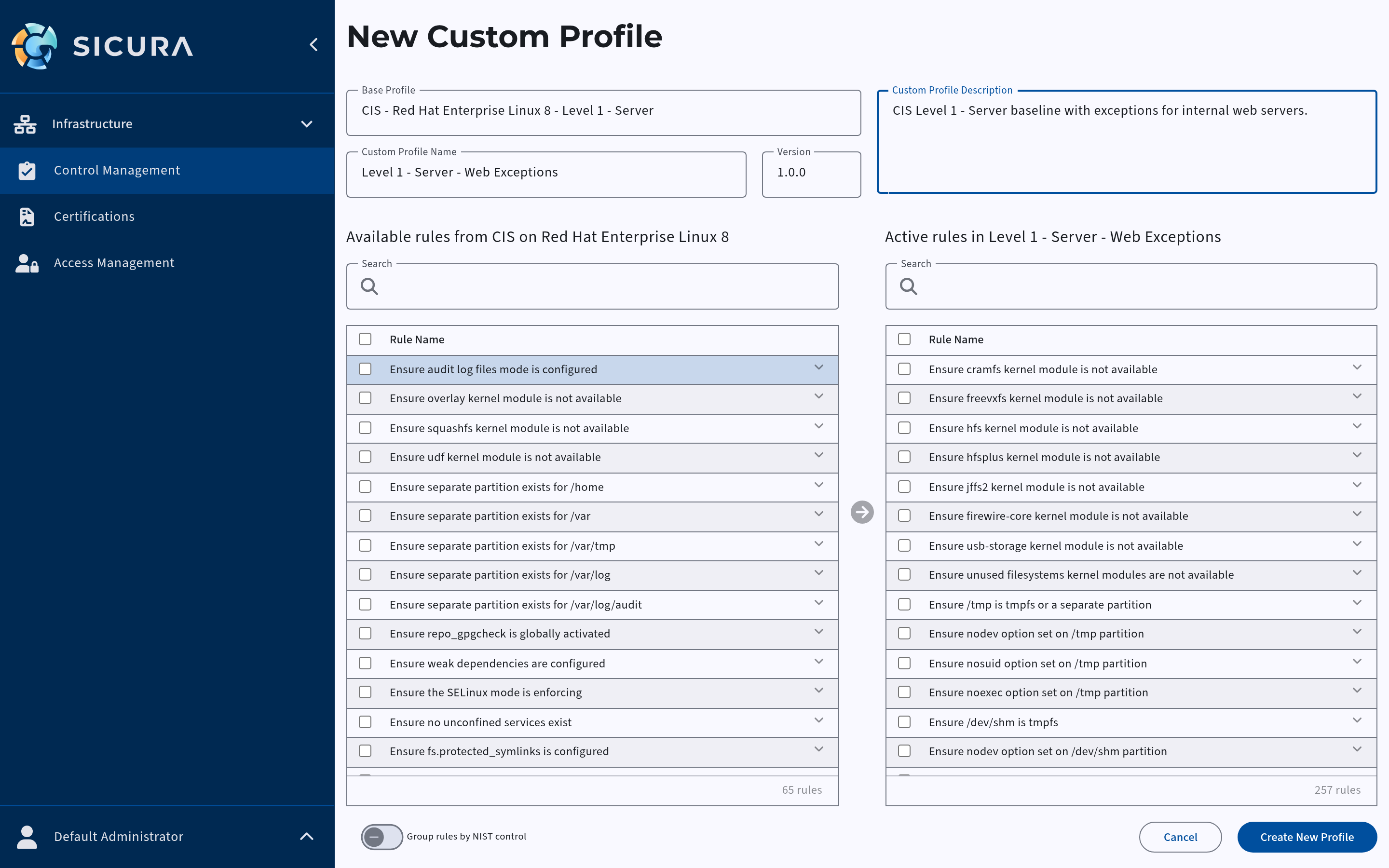
This form will allow you to set the name of your custom profile, modify the default description, and select rules to remove from the default profile set.
Once created click over to the Custom tab to continue.
Custom
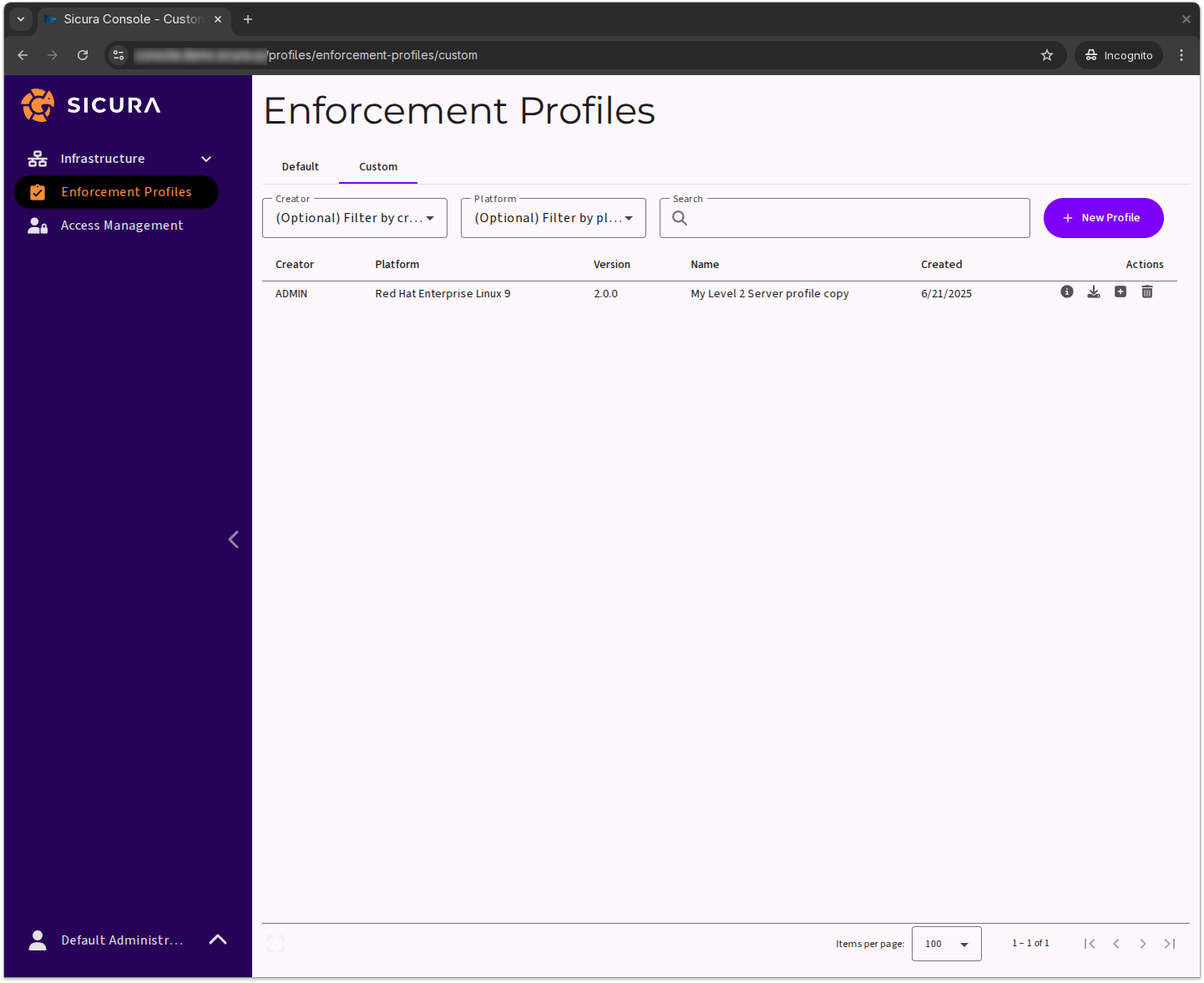
Whenever you copy a default profile, it will appear in the Custom tab. The name, version and description provided can be viewed here as well as the name of the user that created the profile.
Note: Currently only admin users can access enforcement profiles. Profiles will be integrated into the RBAC system in a later release.
The Actions column provides 4 actions to be taken on any custom profile:
- View Profile (the info icon) — allows you to view the active rules in the profile
- Download YAML (the download icon) — downloads the profile as YAML to be used with Sicura Compliance Engine
- New profile (the plus icon) — creates a custom profile based on the contents of this profile
- Delete Profile (the trash-can icon) — removes the profile
Editing a Profile
To edit a custom profile, use the View Profile (info icon) action, then click on the Edit Profile button.
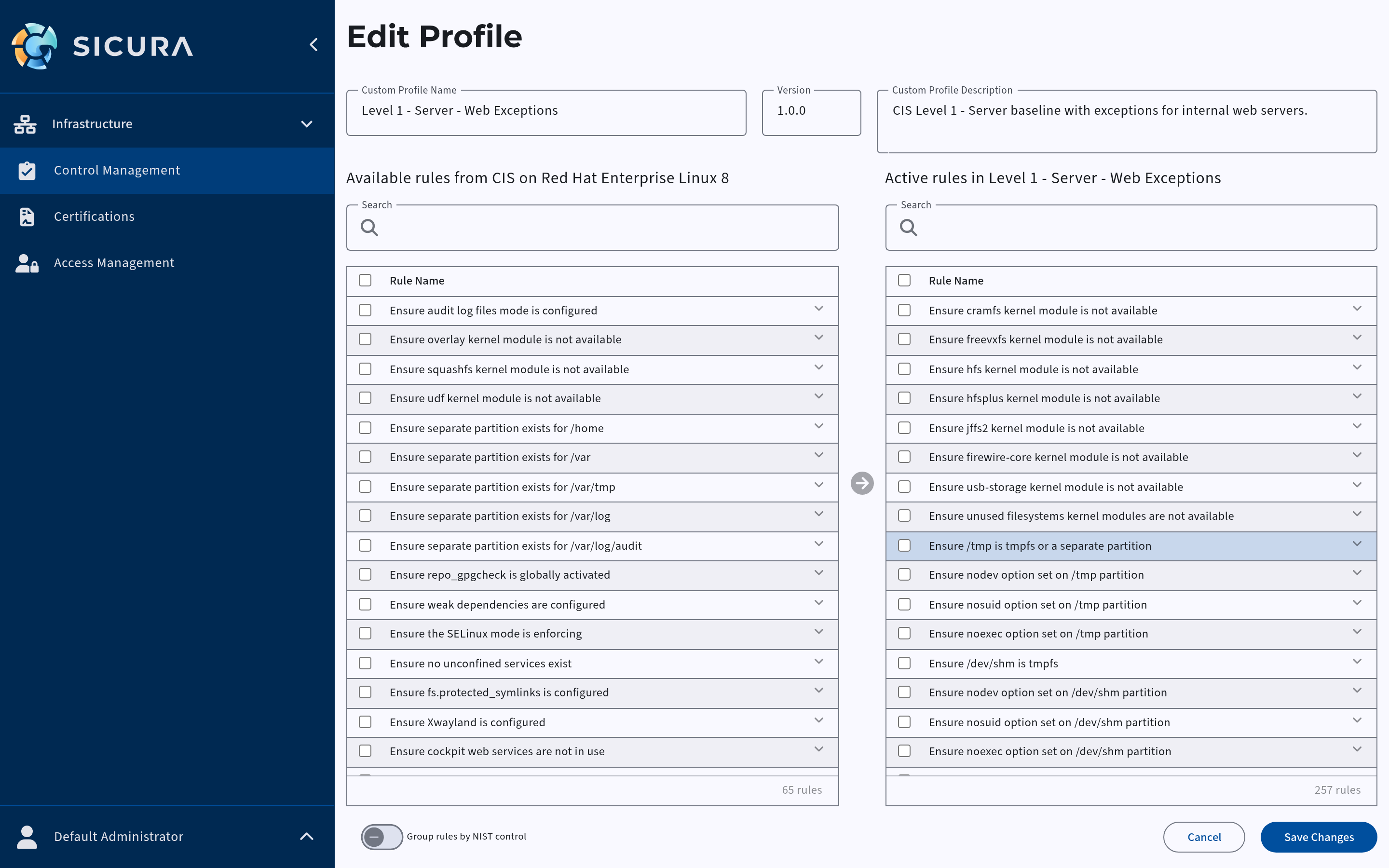
This window provides details for a profile including its name, description, and the list of rules contained within that profile.
From here rules can be added or removed as a user sees fit.
To delete rules from a profile, select the rules you don't want and click the left arrow to move them from the Active rules column to the Available rules column.
To add rules, select them under Available rules and click the right arrow to move them to the Active rules column.
When finished, click on the Save Changes button.