Scheduling
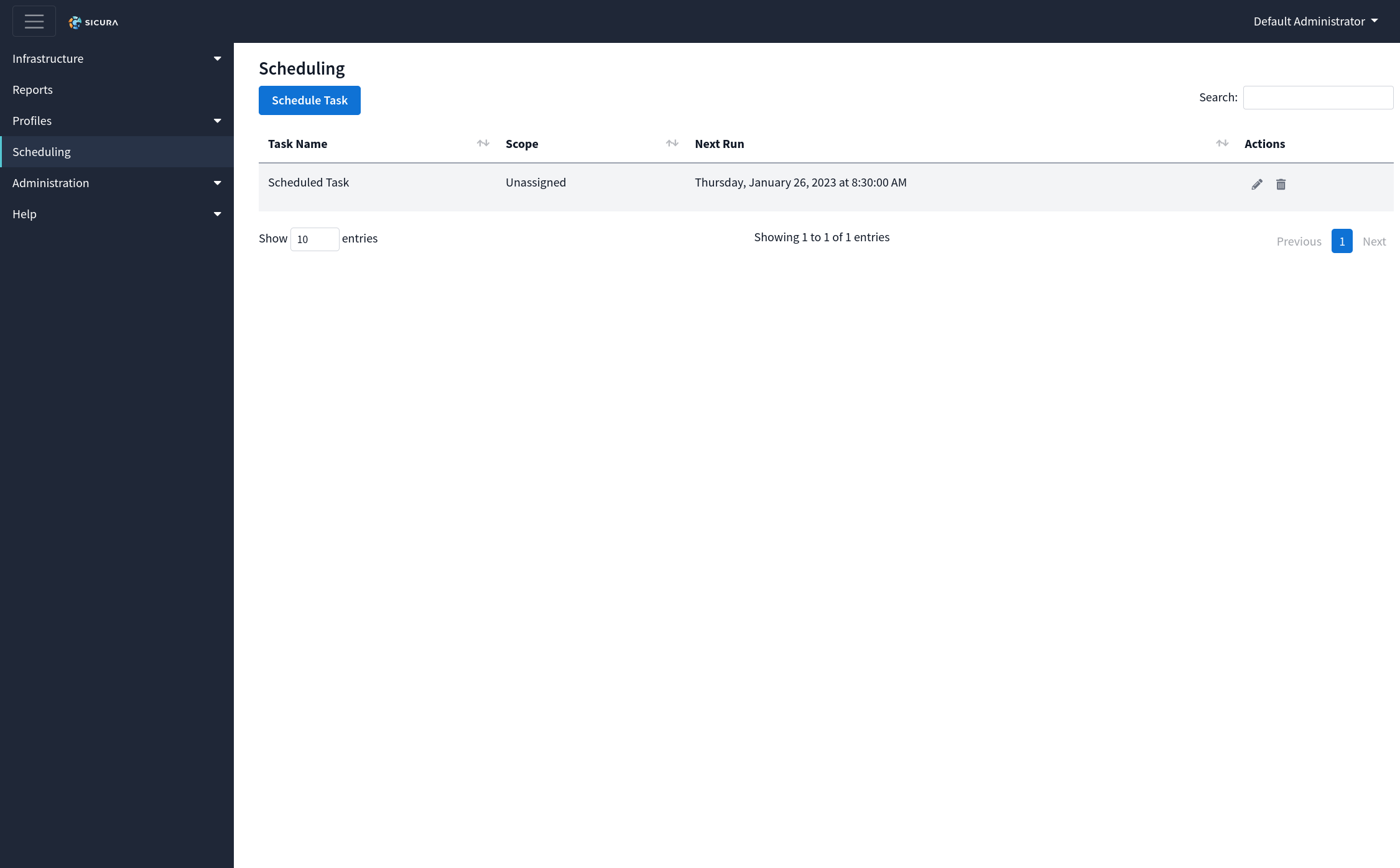
The scheduling page allows users to define repeat scheduled tasks, such as Scanning or Enforcement, for Folders and Endpoints. These tasks automatically generate jobs based on their next run time.
Scope
Scope contains the name of the Endpoint / Folder the task is scheduled for. When a scope is selected that does not contain nodes, a warning will be shown indicating the task will do nothing.
Next Run
The Next Run column indicates the time in which the associated jobs will trigger. The time displayed is represented in local time. After this time passes, Next Run will then populate with a future time according to the Repeats interval.
Task Types
A scanning task will create scan jobs using the default profile for each node in the scope.
Note: Nodes with no default profile set will be skipped. This value can be updated in the settings tab for the node.
When configuring tasks for Enforcement, a profile must be defined. Once a profile has been selected, the remediation must be tested using the now visible Test Remediation button.
Note: Nodes with an enforcement tolerance of 0 will be skipped. This value can be updated in the settings tab for the node. An Enforcement task cannot be scoped to an endpoint whose tolerance is 0: the Scope field shows the reason, and Test Remediation and Create Task stay disabled. A folder can still be the scope, and a warning appears when the folder's own tolerance is 0.
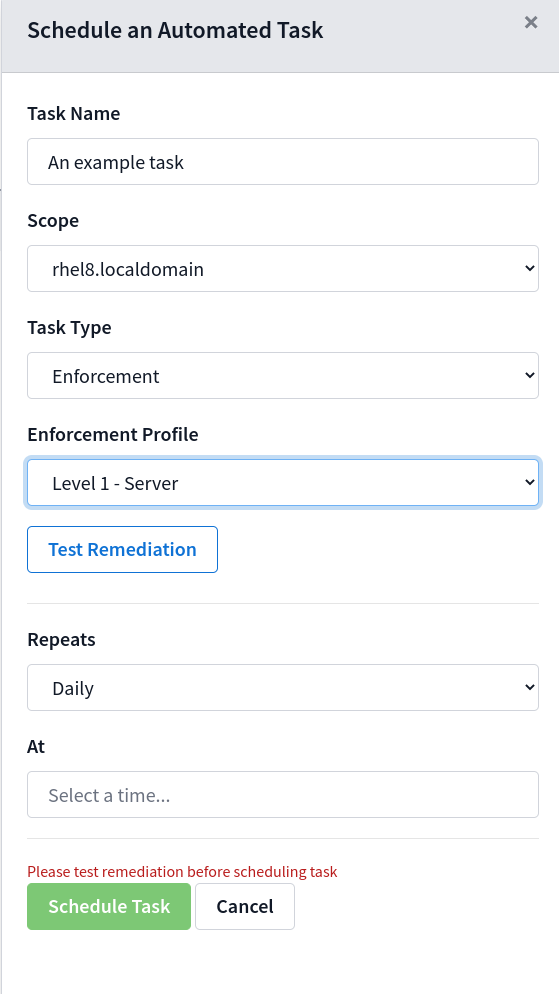
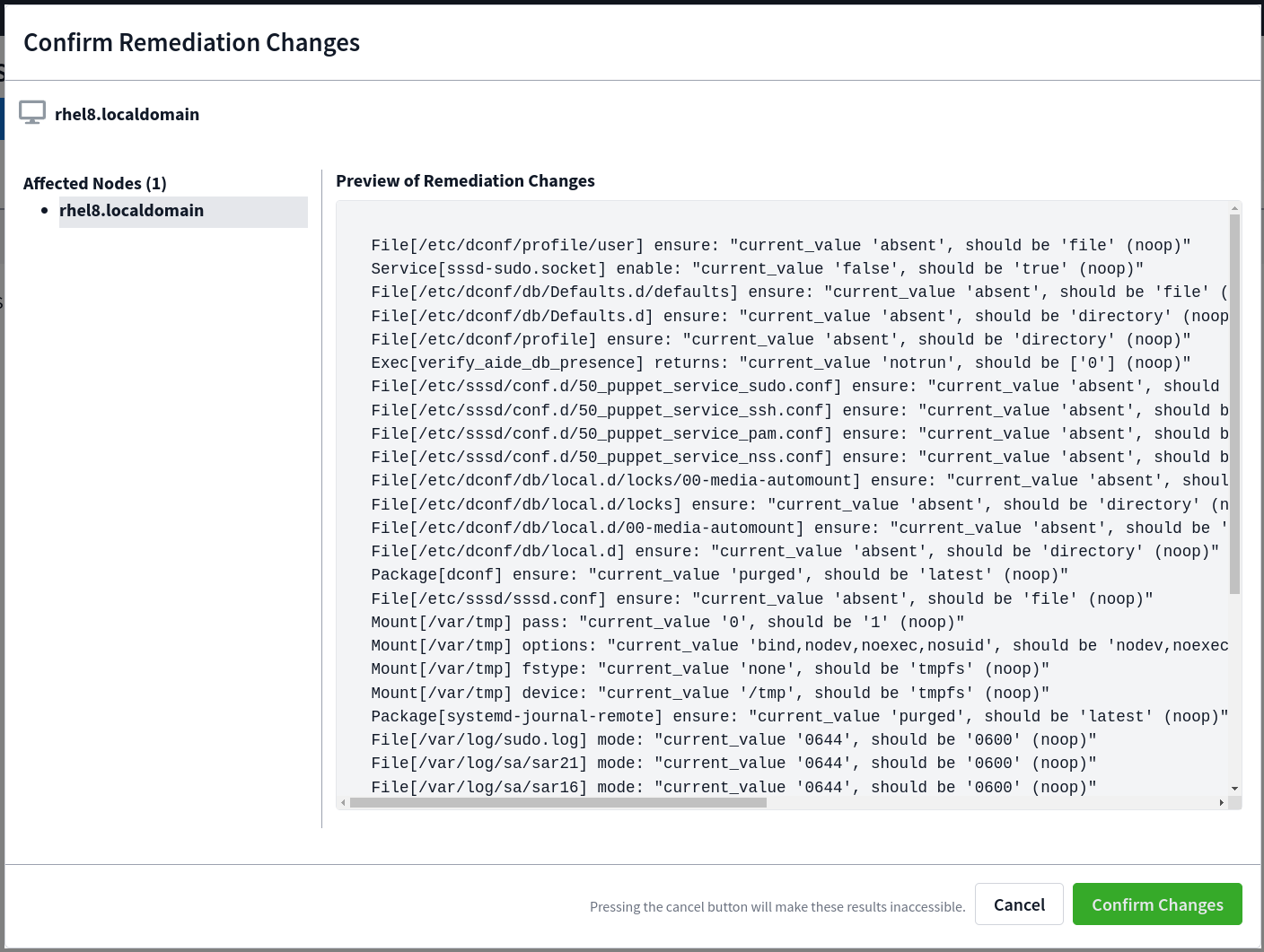
The test remediation button will create a no-op job on every node in the currently selected Scope. Review the expected changes shown for each node, then click Schedule Changes. The form then shows Changes validated. and the task can be submitted.
Repeats interval
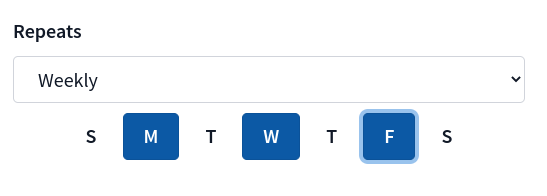
The repeats section of tasks allows users to define the interval in which the tasks will trigger jobs. There are three options (Daily, Weekly, Monthly).
When the weekly option is selected, the user will be allowed to choose the days of the week starting Sunday through Saturday that the jobs will be triggered.
The time of day that the user selects will be used to trigger jobs at that exact time.
For example, time selected by a user in EST for 5:00 PM will trigger at 2:00 PM for users in PST
Updating tasks
When making changes to a task, the Repeats interval must be manually updated. Any existing jobs associated with the task, that have not yet run, will be recreated to match the expected Next Run time.