Sage
Sage is the Sicura Console's built-in assistant. Ask it a question about your nodes, scans and compliance results in plain language, and it looks up the answer in your Console's data.
IMPORTANT: Sage is a beta. Its features, limits and settings may change in a later release, and as with any AI assistant, it's worth confirming key details in the Console before acting on them. See Beta Limits.
Note: Sage requires the Sicura Console image (registry.customers.sicura.us/products/sicura-console:<version>-rails, 2026.11.0 and later). The Classic Console does not show Sage. To move an existing Classic Console installation to the Sicura Console, see Moving from the Classic Console.
Requirements
- A Sicura Console 2026.11.0 or later, running an image tagged
<version>-rails. - An AI model that Sage can send requests to: a hosted provider (Anthropic or OpenAI), or a model you run yourself behind an OpenAI-compatible API or Ollama.
- A model that supports tool calling. Sage answers by calling tools that look up your data, so a model without tool calling cannot answer.
Turn On Sage
Only administrators can change Sage's settings.
- Navigate to Settings -> Sage.
- Turn on the Enabled toggle.
- Choose a Provider:
- Anthropic (Claude) — Anthropic's hosted API. Requires an API key.
- OpenAI — OpenAI's hosted API. Requires an API key.
- Local or self-hosted (OpenAI API compatible) — a model server you run that speaks the OpenAI API. Requires an Endpoint URL.
- Ollama — an Ollama server. Requires an Endpoint URL, for example
http://<ollama-host>:11434.
- Fill in Endpoint URL if your provider needs one. For Anthropic or OpenAI, leave it blank to use the provider's hosted API, or set it to route requests through a proxy.
- Enter the API key, if your provider needs one.
- Choose a Model. Pick one from the list the provider returns, or type a model name.
- Click Save.
- Click Test connection. It tests the saved settings, so save first. A working setup shows Connection succeeded.
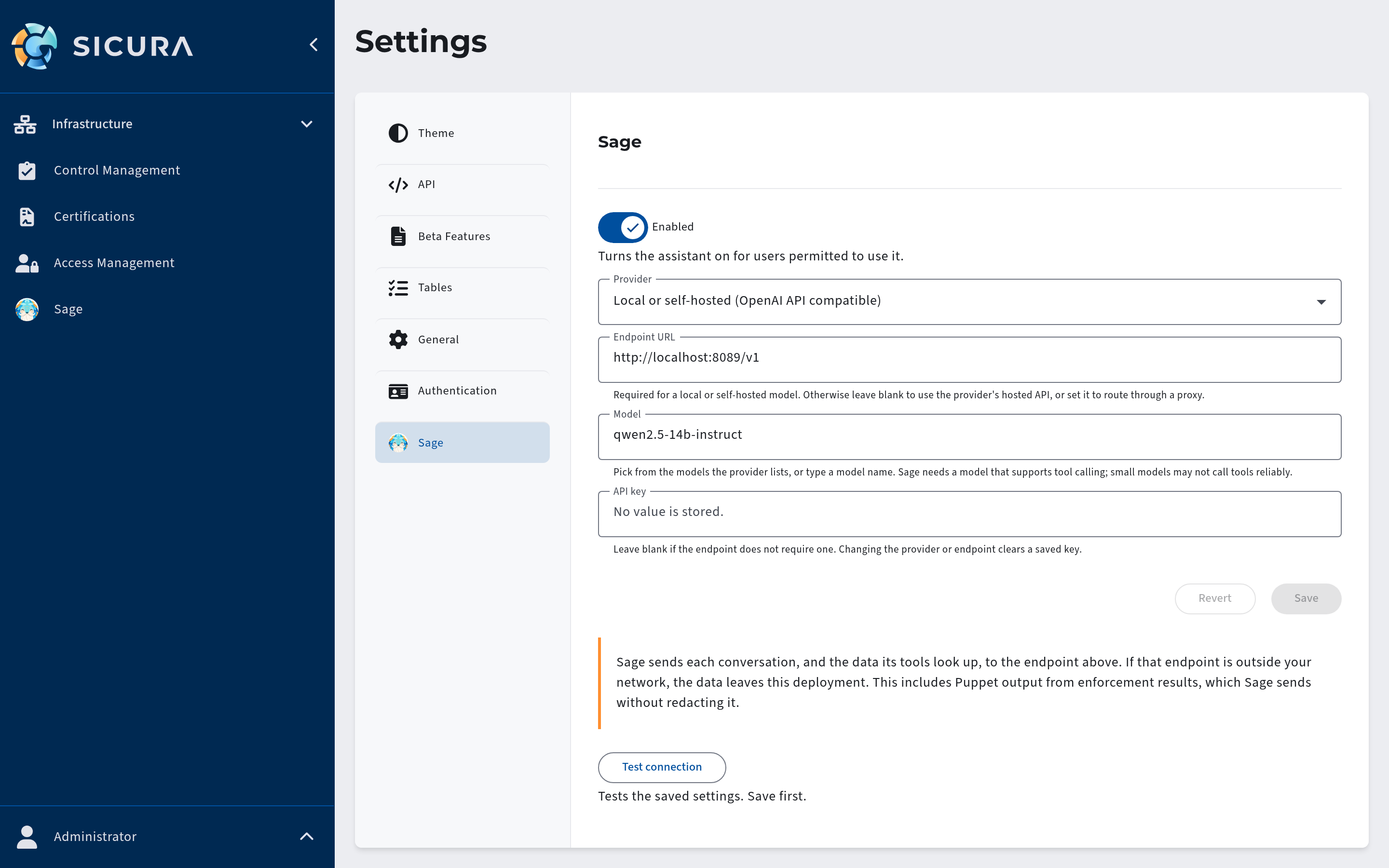
Note: The API key is never shown after you save it. To remove a saved key, click Clear stored value, then Save. Changing the Provider or Endpoint URL also clears a saved key, so enter it again when you change either one.
Who Can Use Sage
- Administrators turn Sage on, choose the provider and model, and can use Sage. In this beta, the built-in operator and viewer roles may not include the Sage read permission.
- Conversations are private. Each user sees only their own conversations, and administrators cannot read other users' conversations.
Where Your Data Goes
Sage sends each conversation, and the data its tools look up, to the provider you chose:
- Anthropic or OpenAI — the data leaves your deployment and goes to that provider.
- Local or self-hosted, or Ollama — the data goes to the endpoint you entered. If that endpoint is outside your network, the data leaves your deployment.
The data includes Puppet output from enforcement results, which Sage sends without redacting it. Choose a provider you trust with that output.
The Settings -> Sage page shows the same notice for the provider you select.
Using Sage
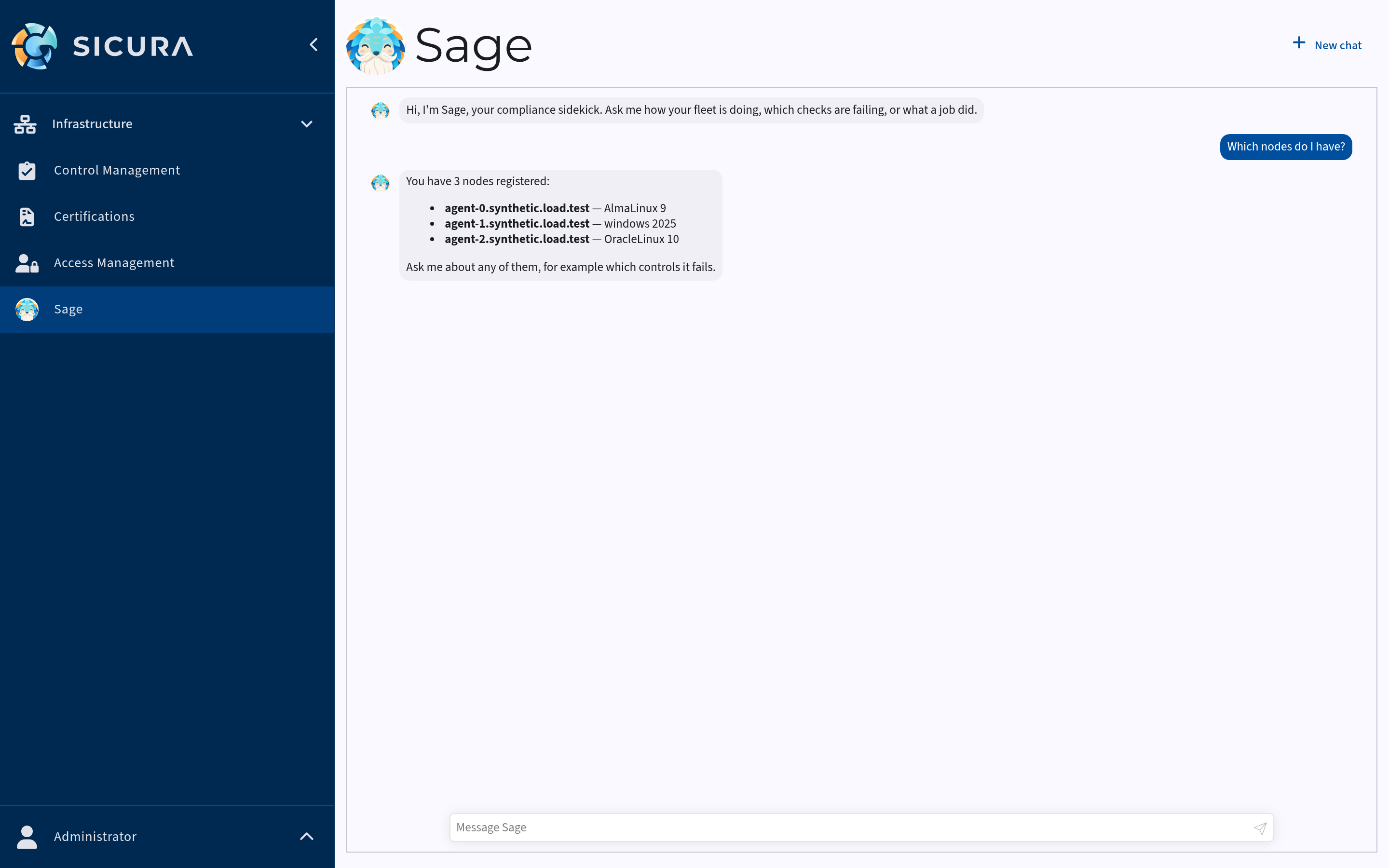
Click Sage in the main navigation. The item appears only when Sage is turned on and you have the Sage read permission.
Type a question and press Enter. While Sage works it shows what it is looking at, for example nodes or scans. Click New chat to start a new conversation.
What Sage Can Read
Sage answers as you, and sees only what you are allowed to read. It can look up:
- compliance summaries and failing controls, across folders and nodes
- profiles
- what you can read through the Console's read-only API, such as nodes, scans, jobs and enforcement results
Sage cannot change anything. It cannot start scans, run enforcement or edit settings.
Sage reads your data through the same MCP server that outside assistants can connect to. See How To - Use the MCP Server.
Beta Limits
- Two replies at a time. By default the Console writes at most two Sage replies at once, across all users. Anyone who asks while both are busy sees "Sage is busy, try again in a moment." To raise the limit, set the
ASSISTANT_MAX_IN_FLIGHTenvironment variable on the Console container. Each reply holds a database connection, so make sure your PostgreSQL server allows the extra connections. - Tool calling is required. A model without it cannot look anything up.
- Small models are unreliable. They may skip the lookup or mishandle the tool call. See Troubleshooting.
- Puppet output is not redacted. See Where Your Data Goes.
- Reply length. A reply from a local or self-hosted model, or Ollama, stops after about 1,500 words (2,048 tokens) per model request. A reply from any provider that is cut off by a length limit keeps its text and ends with "Sage's answer was cut off because it got too long. Ask for a shorter answer or a narrower question." To change the limit, set the
ASSISTANT_MAX_OUTPUT_TOKENSenvironment variable on the Console container. - Message length. A message can be at most 8,000 characters.
- Conversation length. Sage sends the provider at most 128 KB of a conversation's messages, about 32,000 tokens. In a longer conversation it leaves out the oldest questions and answers, so it may not recall them. The whole conversation stays on screen. To change the limit, set the
ASSISTANT_MAX_HISTORY_BYTESenvironment variable (in bytes) on the Console container. - Step limit. Sage makes at most 10 lookups for one question, then answers from what it found. If the model keeps asking for more, Sage stops at 14 and says "Sage took too many steps to answer. Try a narrower question."
Troubleshooting
Messages in the Sage Panel
- Sage is busy, try again in a moment. — Both reply slots are in use. Wait and ask again, or raise the limit (see Beta Limits).
- Sage is still answering your last message. Wait for it to finish or stop it, then send again. — The conversation is still replying, for example in another browser tab. Wait for the reply, or stop it.
- Sage is not turned on. — An administrator has not enabled Sage, or has turned it off.
- Sage is not set up yet. — The provider settings are incomplete, such as a missing API key. An administrator should check Settings -> Sage and run Test connection.
- Sage could not sign in to the AI provider. — The provider rejected the API key. An administrator should enter a valid key.
- Sage could not reach the AI provider. — The Console could not connect to the provider or endpoint. Check the Endpoint URL and that the Console can reach it.
- Sage got an error from the AI provider. — The provider returned an error, or did not answer within two minutes. A model that does not support tool calling also ends up here. Run Test connection for details.
- Sage took too many steps to answer. Try a narrower question. — Sage hit its step limit. Ask about fewer nodes, or one thing at a time.
- Sage's answer was cut off because it got too long. Ask for a shorter answer or a narrower question. — The reply reached the length limit (see Beta Limits). The text written so far stays.
- Your message is too long. Shorten it and try again. — The message is over 8,000 characters.
- Sage ran into a problem, try again in a moment. or Sage could not answer, try again in a moment. — An unexpected error. Try again; if it keeps happening, contact Sicura support.
Test Connection Failures
Test connection shows Connection failed with a reason:
- No model is configured. — Choose a Model and save.
- Enter the endpoint URL. — The provider you chose needs an Endpoint URL.
- The provider accepted the request but did not answer within 10 seconds. — The model is slow to load or overloaded. Try again, or choose a smaller or faster model.
- The endpoint answered, but not with the provider API. Check the endpoint URL. — The URL points at something else, such as a web page. Check the address and path.
- This endpoint is an Ollama server. Change Provider to Ollama, which honours the output cap Sage sends. — Change Provider to Ollama.
- Any other reason is the error the Console received, such as a refused connection, a "Not Found" from a wrong path, or the provider rejecting the API key or model.
Note: Test connection does not check tool calling. A model can pass the test and still fail in the Sage panel with "Sage got an error from the AI provider."
Model Too Small
A small model can pass Test connection and still answer badly. If you see any of the following, switch to a larger model that supports tool calling:
- Sage answers without looking anything up. No status shows what it is looking at, and the answer is a guess.
- The answer shows the tool call as text, such as a block of JSON naming a tool, instead of a result.
- Simple questions end with "Sage took too many steps to answer. Try a narrower question." because the model keeps repeating lookups.